

Your Conditional Access policies have holes between them. Here’s how to find them, close them, and prove they’re closed.
Here’s the thing about Conditional Access that most of us learn the hard way: it doesn’t deny anything. It grants. A sign-in that trips no policy doesn’t get stopped at the door. It gets a token, same as everyone else.
If you’ve clicked around the Conditional Access blade, built two or three policies, and have a nagging feeling that your coverage isn’t quite what the policy list suggests, you’re probably right. Most tenants that think they’re covered have written the “grant with conditions” half and skipped the “deny everything else” half.
This post walks through how to fix that, ending with the newest gap: agent identities, where the policy you already wrote may do nothing at all.
1. The mental model most people skip
Conditional Access is an if-then engine, not a firewall. If a sign-in matches a policy’s assignments, the policy applies its controls. If nothing matches, the token is issued. There’s no implicit “deny all” rule sitting at the bottom of the list.
Microsoft says so directly in its deployment planning guidance:
“Access tokens are issued by default if a Conditional Access policy condition doesn’t trigger an access control.”
— Microsoft Learn, Plan a Conditional Access deployment
The same page uses an example worth borrowing. Say you create a policy that requires MFA for the Finance group when they access the Payroll app. User A is in Finance and gets an MFA prompt. User B isn’t in Finance, so no policy applies to them, and they reach Payroll without any MFA at all. The fix is a second policy: include all users, exclude Finance, target Payroll, and block.
That’s why Microsoft recommends writing policies against All resources rather than one app at a time. If every policy is per-app, then every new app you onboard starts life with no policy on it, and nobody notices until someone goes looking.
There’s a counterweight, though, and it belongs in the same breath. Microsoft’s own tip warns that combining block and All resources in one policy can lock out your admins, and that exclusions can’t be configured for important endpoints such as Microsoft Graph. So “All resources” is the right default for grant controls, and a loaded weapon for block controls.
Here’s the framing to carry through the rest of this post: your policy list is a list of positive statements. Your coverage is whatever falls between them. The job is finding the gaps.
2. The day-one policy set
You don’t need to design your baseline from scratch. Microsoft ships a Secure foundation category of policy templates and recommends deploying it as a group. Microsoft Learn lists eight policies in it:
- Require MFA for admins
- Securing security info registration
- Block legacy authentication
- Require MFA for admins accessing Microsoft admin portals
- Require MFA for all users
- Require MFA for Azure management
- Require compliant or Entra hybrid joined device or MFA for all users
- Require compliant device
I won’t repeat what each one does; the Conditional Access policy templates page covers the settings for each. You’ll find them in the Microsoft Entra admin center under Entra ID › Conditional Access › Create new policy from templates.
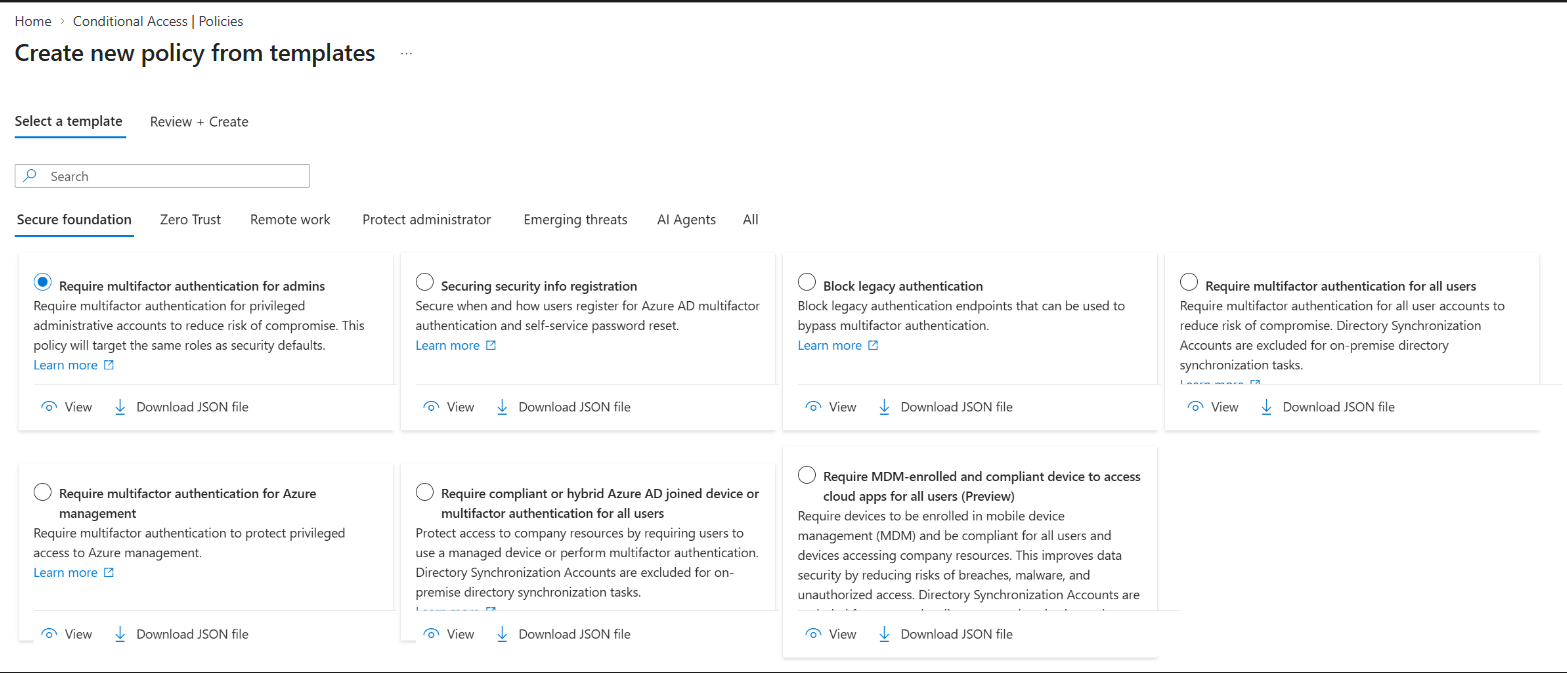
Don’t expect to see exactly eight. In the lab tenant for this post, the portal showed seven: Require MFA for admins accessing Microsoft admin portals wasn’t there, and a Preview template requiring an MDM-enrolled compliant device was. The set varies by tenant, so check what yours offers rather than trusting the list above.
Other template categories exist for Zero Trust, Remote work, Protect administrator, Emerging threats and AI Agents. The Zero Trust set is essentially Microsoft’s compressed take on the idea; if you want the argument behind it, I’ve covered it in Zero Trust Is Not a Product. We’ll come back to the AI Agents category in section 8.
Licensing, stated once. Entra ID P1 covers most of the above. P2 is required for anything that reads Identity Protection risk (sign-in risk and user risk). Also note that security defaults and Conditional Access don’t mix: creating a Conditional Access policy prevents you from enabling security defaults. You’re choosing one approach or the other.
One more thing worth knowing: any template can be exported as JSON, edited, and re-imported through the Upload policy file option on the main policies page. That’s your on-ramp to managing policy as code, which deserves its own post.
3. Building one, step by step
Let’s walk a single policy from start to finish. I’d pick Block legacy authentication: it’s the highest-value, lowest-blast-radius policy in the set, and it touches every part of the policy editor without too many moving parts.
Every Conditional Access policy is made of the same building blocks:
- Assignments: users, groups, directory roles and workload identities, both included and excluded.
- Target resources: apps, user actions, or authentication contexts.
- Conditions: device platform, location, client app, device attributes, and sign-in and user risk.
- Grant controls: block, or grant with requirements such as MFA or a compliant device.
- Session controls: sign-in frequency, persistent browser sessions, app-enforced restrictions and so on.
Lab: Block legacy authentication
- Sign in to the Microsoft Entra admin center as at least a Conditional Access Administrator and go to Entra ID › Conditional Access › Policies › New policy. (Or start from the template in the Secure foundation set. The editor is the same.)
- Give it a name that follows your naming standard (more on that below).
- Under Users, include All users. Under Exclude, add your
EmergencyAccessgroup. If you haven’t built that group yet, stop and read section 5 first. - Under Target resources, include All resources.
- Under Conditions › Client apps, set Configure to Yes and select only Exchange ActiveSync clients and Other clients. These are the legacy authentication client types.
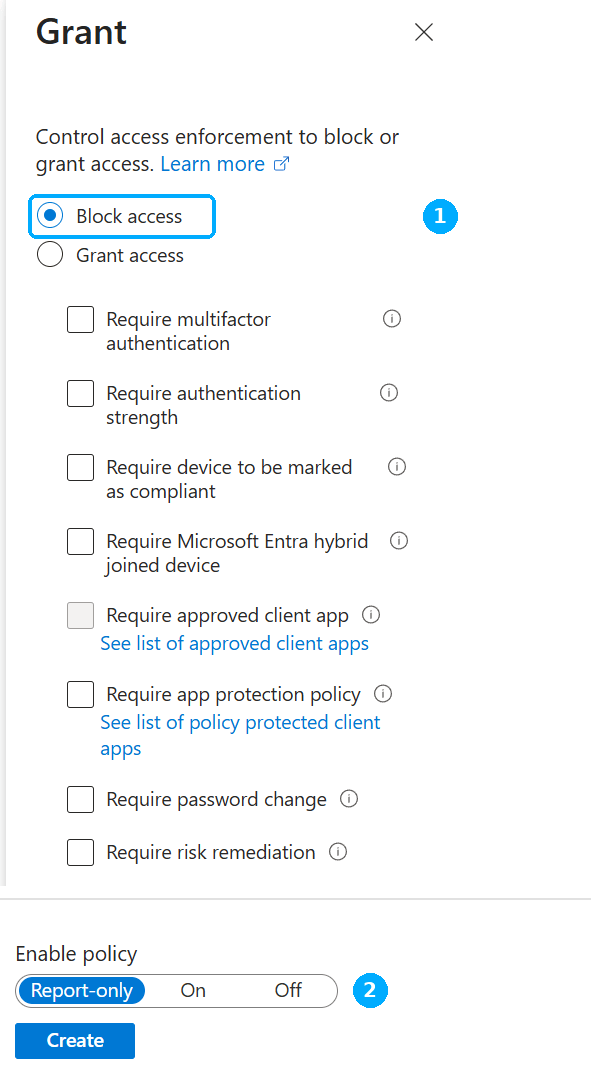
- Under Grant, choose Block access.
- Set Enable policy to Report-only and select Create.
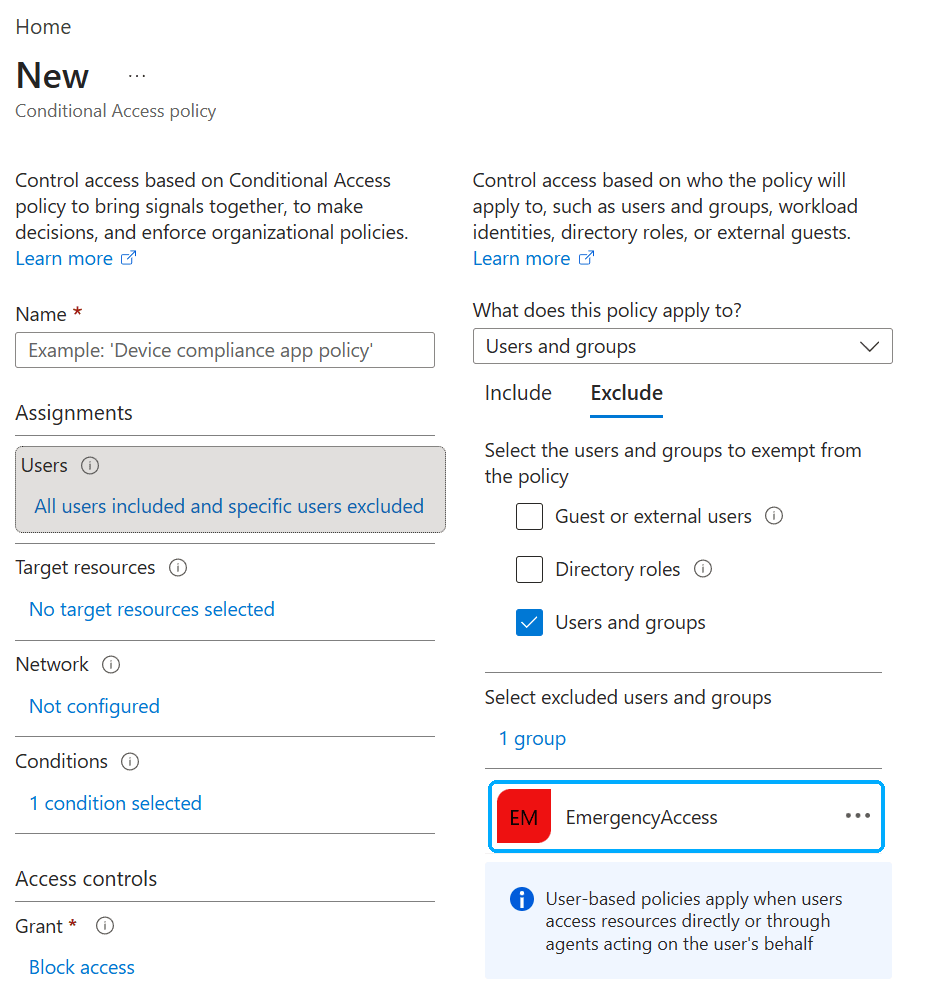
EmergencyAccess group selected.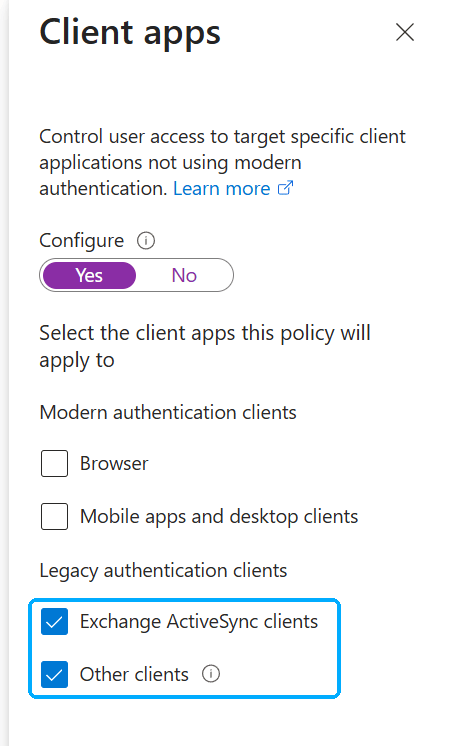
Target apps with a filter, not a list
This policy targets All resources, but plenty of your later policies won’t. When you do need to scope to a set of apps, use filter for applications (custom security attributes on the app) instead of picking apps one by one. It scales, it means you manage attributes rather than editing policies, and it sidesteps the policy size limit you can hit with long lists of GUIDs.
Name it so it’s still readable in a year
Microsoft’s suggested naming shape is: a sequence number, the apps it applies to, the response, who it applies to, and when. Something like:
CA03 - All resources: Block - All users - Legacy authentication clientsIt feels fussy with five policies. It’s the only thing that makes a 40-policy tenant legible a year from now, and the sequence number means you can tell a colleague on a call to “open CA03” without any ambiguity.
Microsoft also describes a convention for contingency policies: disabled policies you build in advance and only switch on during an outage. They start with ENABLE IN EMERGENCY, name the disruption, and carry an order number:
EM01 - ENABLE IN EMERGENCY: MFA Disruption [1/4] - Exchange SharePoint: Require Microsoft Entra hybrid join For VIP usersAn admin mid-outage, under pressure, can see at a glance what to turn on and in what order.
Protect the policies themselves
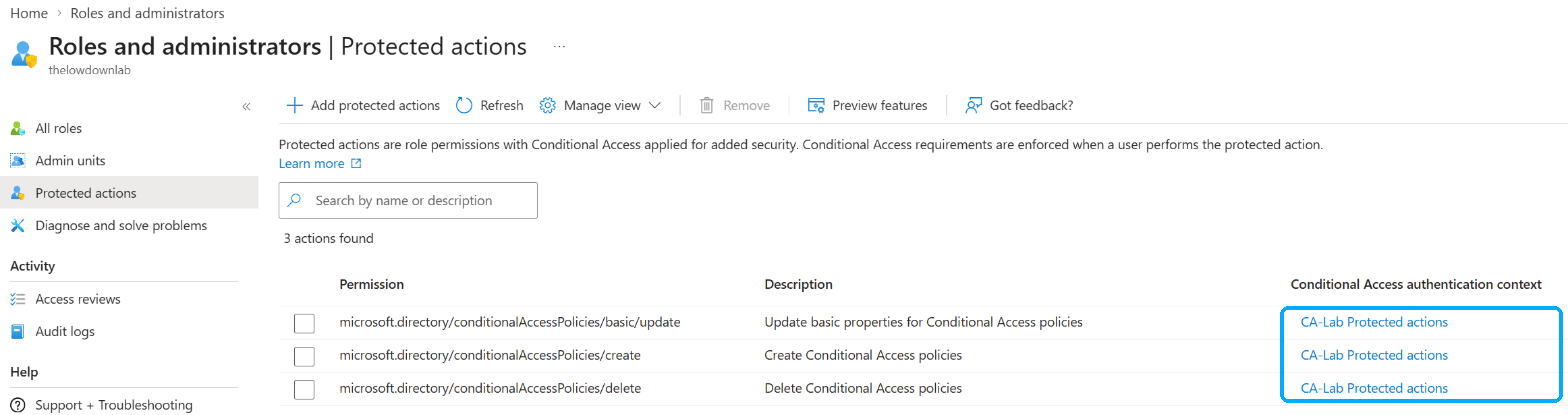
Finally, turn on protected actions for Conditional Access. This lets you require a fresh MFA (or another grant control) before anyone can create, change or delete a Conditional Access policy. In practice you create an authentication context, write a policy that targets it and set that policy to On, and only then assign the context to the Conditional Access policy permissions under protected actions. Microsoft is explicit about the order: get it backwards, or leave the policy in Report-only, and you’re stuck in a loop of requests to reauthenticate.
4. Report-only, and the week you don’t skip
Every policy created from a template starts in report-only mode. That’s a default worth leaving alone. In report-only, the policy is evaluated at every sign-in and the result is logged, but nothing is enforced.
You’ll see these results in the log, and each one tells you something different:
| Result | What it means |
|---|---|
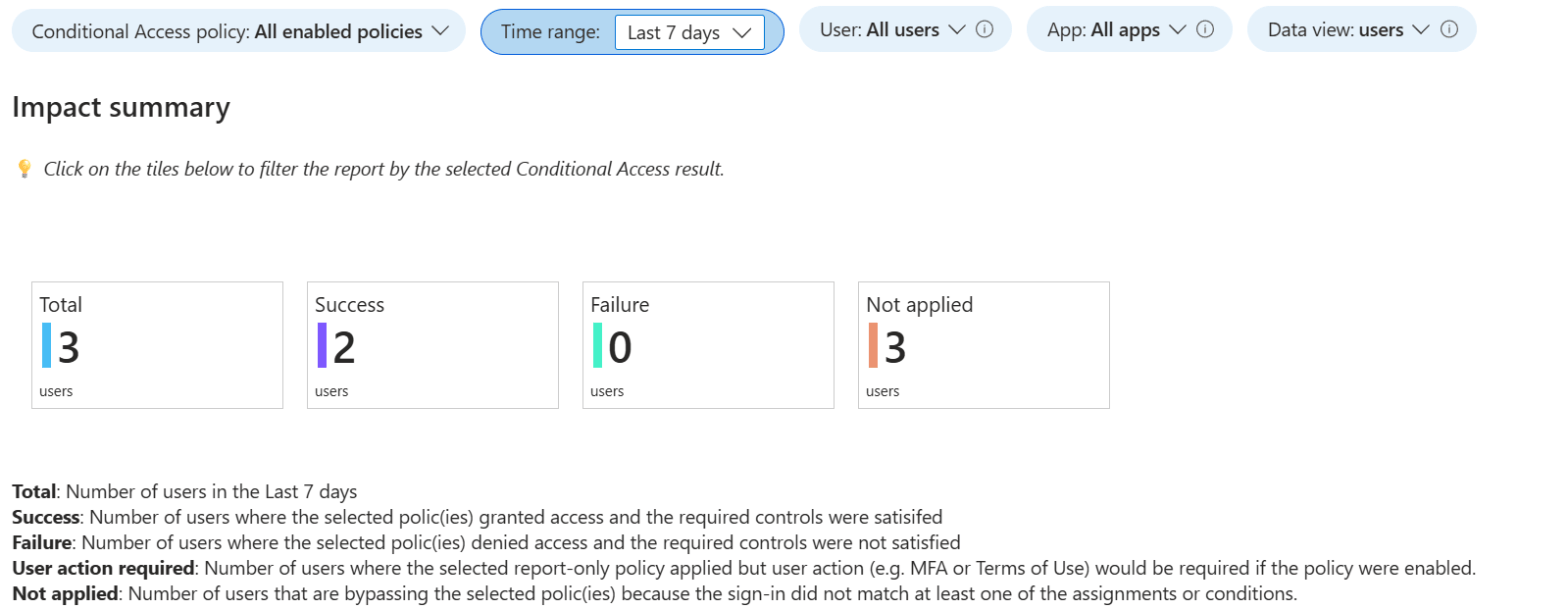
| Report-only: Success | Conditions matched and the controls were already satisfied, for example an MFA claim already in the token. |
| Report-only: Failure | Conditions matched but the controls weren’t satisfied. With a block control, this is what you’ll see for every in-scope sign-in. Read it as “would have been blocked”. |
| Report-only: User action required | Conditions matched and the user would have needed to do something, such as an MFA prompt or accepting terms of use. In report-only they aren’t prompted. |
| Report-only: Not applied | Not all conditions matched, for example the user was excluded. |
| Success / Failure / Not applied | The enforced equivalents, for policies that are switched on. |
Open any sign-in event and you’ll find these on the Conditional Access and Report-only tabs.
For the bigger picture, the Conditional Access Insights and Reporting workbook shows aggregate impact across users and apps. It has real prerequisites, though: Entra ID P1 plus a Log Analytics workspace that’s receiving your sign-in logs. Not every reader has that set up, and it’s worth doing before you start rolling out policies, not after.
A report-only policy that requires a compliant device can still prompt users on macOS, iOS and Android to pick a device certificate, and those prompts can repeat until the device is compliant, even though nothing is being enforced. Microsoft’s guidance is to exclude those platforms from report-only policies that check device compliance. “Report-only” doesn’t always mean “invisible to users”.
On cadence, Microsoft recommends at least one week in report-only per policy before enforcement, and a three-phase rollout: foundation in weeks 1–2, core authentication in weeks 2–3, and advanced protection in weeks 3–4.
5. Break-glass: the exclusions to get right before anything else
Before you enforce a single policy, make sure you can’t lock yourself out. That means emergency access (break-glass) accounts, set up properly.
The basics. Two or more accounts, cloud-only, on the *.onmicrosoft.com domain, not federated and not synced from on-premises. If your identity provider goes down, these still work.
What’s changed. If you set up break-glass a few years ago, this is the part to revisit. Microsoft now recommends phishing-resistant passwordless authentication for these accounts: a passkey (FIDO2), which is the recommended option, or certificate-based authentication if you already run a PKI. Not a long password in an envelope. And the method must be different from what your everyday admin accounts use, so that one method outage can’t take out both. If your admins use Microsoft Authenticator, your break-glass accounts use FIDO2 keys.
PIM: permanent active, not eligible. In Privileged Identity Management, assign Global Administrator to these accounts as permanent active. Microsoft now documents the concrete reason: if every Global Administrator and Privileged Role Administrator assignment is eligible, activation requires approval, and no approvers remain in the directory, then nobody can approve anybody. Tenant administration is effectively locked.
Exclude a group, not individuals. Create a dedicated security group, such as EmergencyAccess, and exclude it from every policy that blocks or restricts sign-in.

A policy created from a template excludes only the person who created it. Not your break-glass accounts. If you deploy the Secure foundation set from templates and stop there, your break-glass exclusions don’t exist. Open each policy afterwards and add the EmergencyAccess group.
The counter-trap, which a lot of write-ups get wrong. The usual advice is to exclude break-glass from everything. You don’t need to exclude it from report-only policies, and Microsoft says so plainly:
“Report-only policies don’t block access and don’t need to exclude emergency accounts.”
— Microsoft Learn, Manage emergency access accounts in Microsoft Entra ID
Just remember to add the exclusion at the moment you flip a policy from report-only to on.
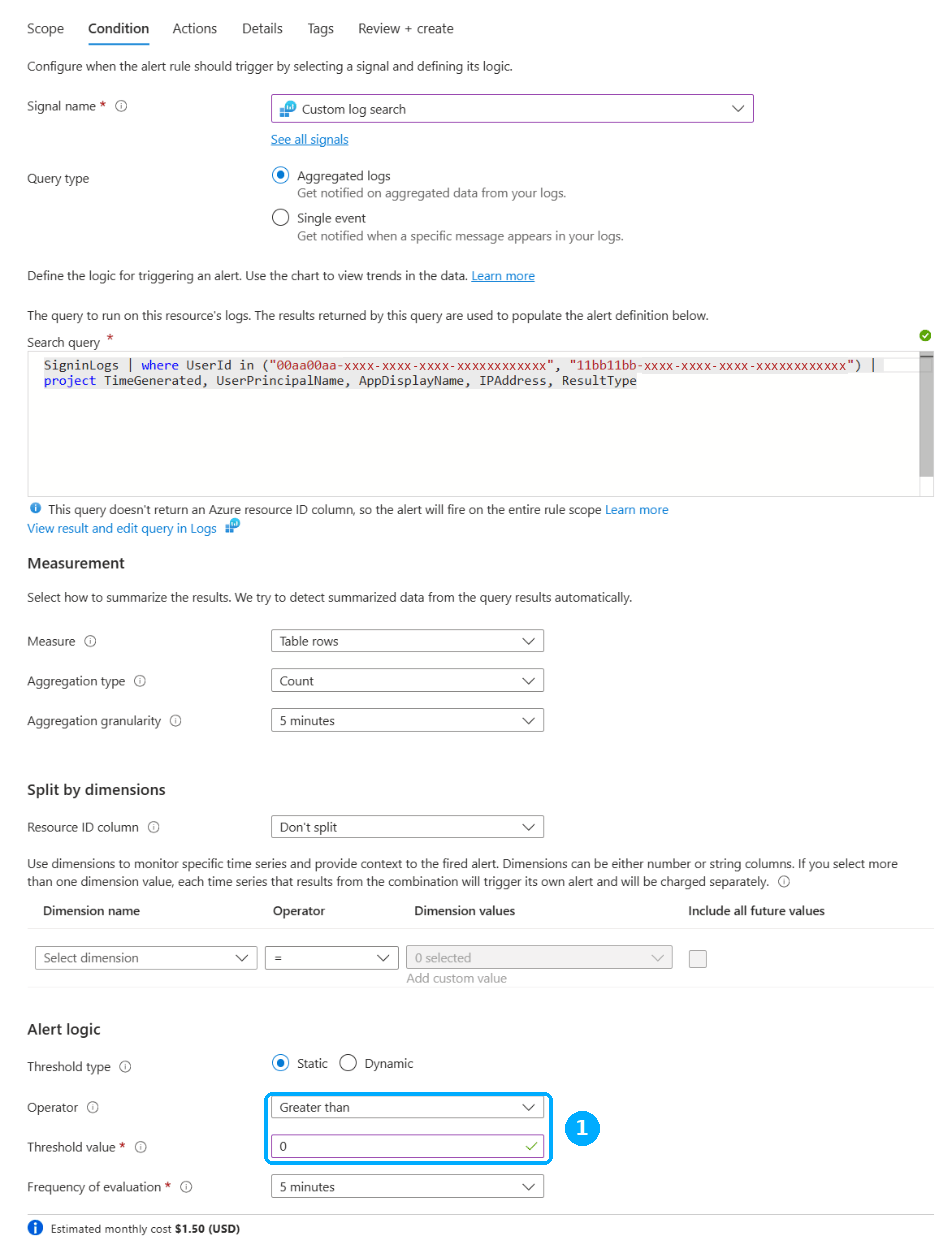
Test and watch. Validate the accounts at least every 90 days, and again after any IT staff change. Then alert on every single sign-in from them. If your sign-in logs flow to Log Analytics, Microsoft’s sample query, adapted slightly here to use in and return the app name, is short enough to use as-is; drop in the object IDs of your two accounts:
SigninLogs
| where UserId in ("00aa00aa-bb11-cc22-dd33-44ee44ee44ee", "11bb11bb-cc22-dd33-ee44-55ff55ff55ff")
| project TimeGenerated, UserPrincipalName, AppDisplayName, IPAddress, ResultType
Use it in an Azure Monitor alert rule with a threshold of greater than 0 and severity 0 (Critical).
6. The mistakes that generate helpdesk tickets
Microsoft publishes a short list of configurations not to use when a policy targets all users and all resources. These aren’t hypotheticals or war stories from the field. They’re Microsoft’s documented list of ways to lock out a tenant:
| # | Configuration (all users, all resources) | What actually happens |
|---|---|---|
| 1 | Block access | Blocks the entire organisation. |
| 2 | Require device to be marked as compliant | Users with unenrolled devices lose all access, including to the Intune portal. An admin without an enrolled device can’t get back in to undo it. |
| 3 | Require Microsoft Entra hybrid joined device | Blocks everyone without a hybrid joined device. |
| 4 | Require app protection policy | Blocks everyone if no Intune policy exists, and locks admins out of portals like Intune and Azure. |
Those are the outages. Then there are three that generate tickets instead:
Service dependencies. The app in the sign-in log isn’t always the resource being called. Signing in to the Azure portal, for example, calls Azure Resource Manager. Put a policy on one and not the other and you get a failure the user can’t explain and the helpdesk can’t reproduce. Microsoft’s fix is to combine the app and the resources it depends on in the same policy.
Untested exclusions. Excluding someone from one MFA policy doesn’t exempt them from MFA. Another policy may still require it. Test the exclusion, not just the inclusion. Your test plan should include “this person should not be prompted” cases.
Policy sprawl. There’s a hard limit of 240 policies per tenant, and it counts report-only and disabled policies too. Consolidate by grouping apps that have identical requirements for the same users. Don’t add a policy per app.
And one line on recovery, because it belongs here: deleted policies and named locations can be restored within a 30-day soft-delete window.
7. What to check in the sign-in logs afterwards
Once policies are live (or in report-only), the sign-in logs are where you find out whether they do what you think.
Where: Microsoft Entra admin center › Entra ID › Monitoring & health › Sign-in logs. The Reports Reader role is enough.
How to filter: use Correlation ID when you’re chasing one user’s report, or filter on Conditional Access scoped to failures when you’re surveying for problems.
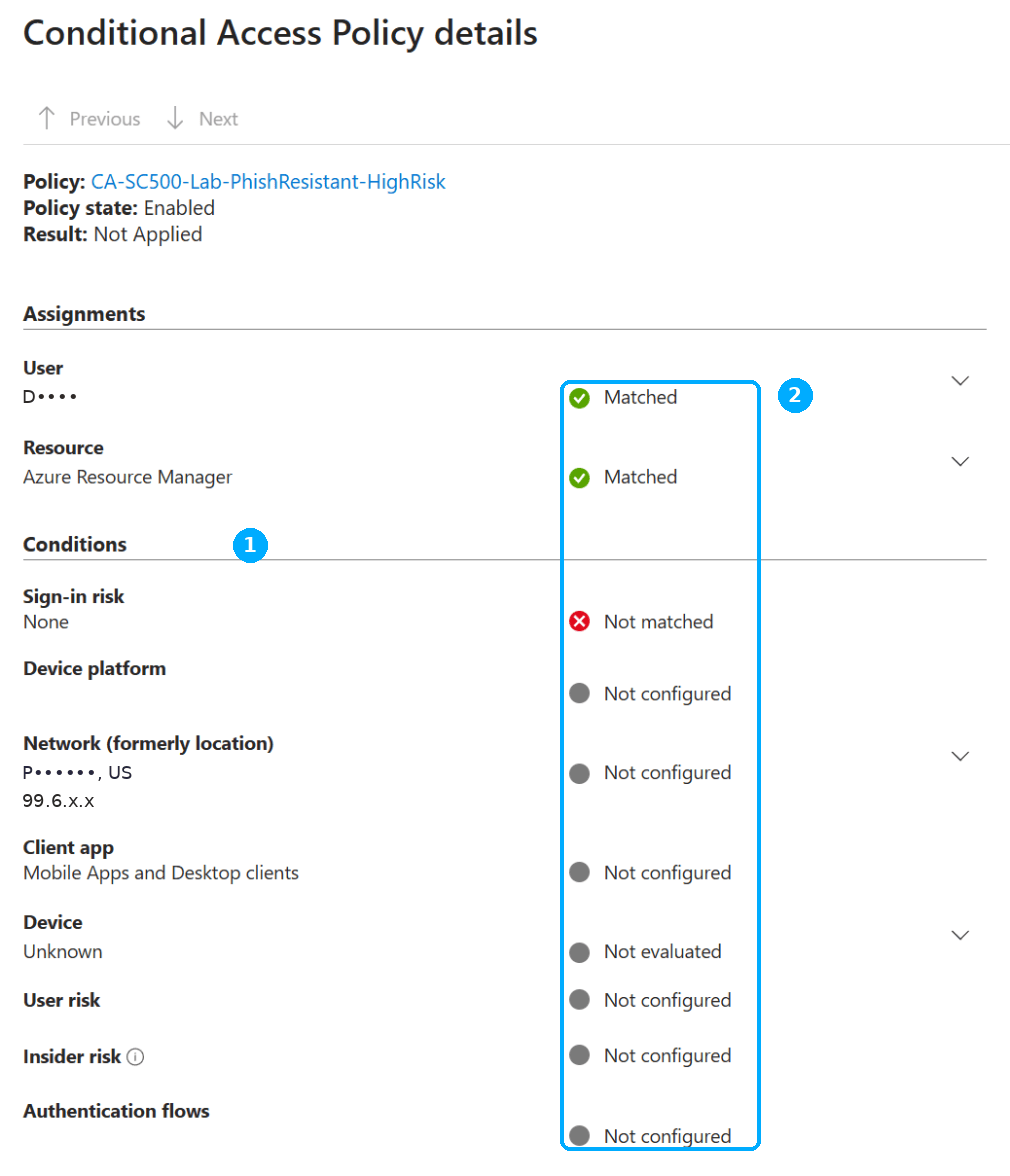
What to open: the Conditional Access tab on a sign-in lists which policies applied. Now select the ellipsis on a policy row. That opens the detail view: the signals collected at sign-in on the left, and whether each one satisfied the policy on the right. It’s the single most useful screen in the product, and the one most admins never open.
Audience reporting. A sign-in to Teams is really a request against several resources: Teams chat, Exchange for the calendar, SharePoint for files, and so on. The Audience field (under Resource, after you select a policy on the Conditional Access tab) lists all of them. It’s the answer to the perennial “why did a SharePoint policy fire when I just opened Teams?” question.
Error codes worth memorising. They arrive prefixed with AADSTS, so 53003 shows up as AADSTS53003.
| Code | Meaning |
|---|---|
53000 | DeviceNotCompliant |
53001 | DeviceNotDomainJoined |
53002 | ApplicationUsedIsNotAnApprovedApp |
53003 | BlockedByConditionalAccess |
53004 | ProofUpBlockedDueToRisk |
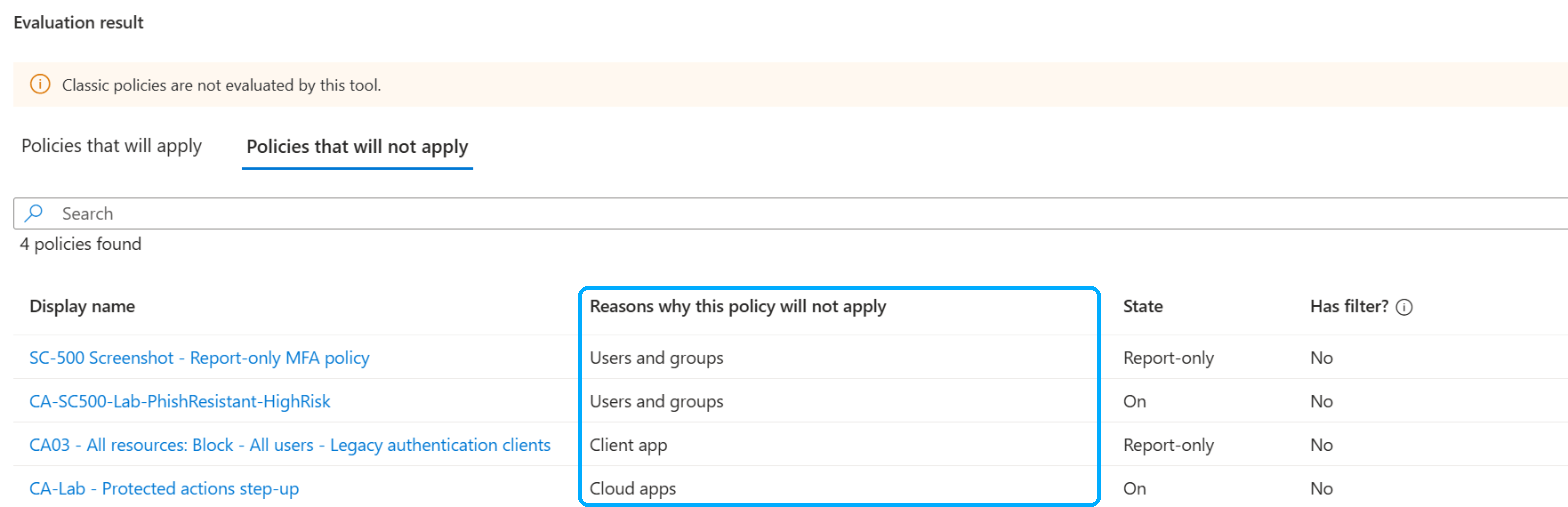
When the log isn’t enough: run the sign-in diagnostic from Basic info › Troubleshoot Event, or use the What If tool to simulate a sign-in. One caveat on What If: it doesn’t test service dependencies, so a Teams simulation won’t account for a policy on Exchange Online.
8. Agent identities: where the policy you already wrote does nothing
This is the part that has changed most recently, and it’s where a lot of tenants will have gaps they don’t know about yet.
An agent can reach your resources using three different kinds of identity, and which one it uses decides what your policy is even evaluating. Conditional Access evaluates the subject of the token, and the subject is different in each case:
| Access pattern | Token subject | What a policy must target |
|---|---|---|
| On-behalf-of (delegated) | The user | Users and groups, not agent identities |
| Application-only / autonomous | The agent identity | The agent identity, or its blueprint |
| Agent’s user account | The agent’s user account | That account specifically |
Now the part that makes this section worth reading. Microsoft lists four configurations that “aren’t currently supported”. Here they are, quoted rather than paraphrased, because the exact wording matters:
- “Policies targeting all users don’t include agent’s user accounts.” In other words, your “Require MFA for all users” policy doesn’t cover them.
- “Scoping a Conditional Access policy to include or exclude agent’s user account based on their group membership” isn’t supported. You can’t scope them in or out with groups.
- “A Conditional Access policy targeting agent identities won’t apply to the agent’s user account.”
- “A Conditional Access policy targeting agent identities using agent identity blueprint covers only the agent identity, not the agent’s user account.”
Put those together and an agent’s user account can easily end up covered by nothing, which, as section 1 explained, means a token.
Scaling it
Naming each agent individually stops working quickly. Two things help. Agent identity blueprints let one policy apply to a whole class of agents, including ones created later. Custom security attributes let policies match on business labels (say, an approval status of HR_Approved) rather than object names, so new agents pick up the right policy as soon as they’re tagged.
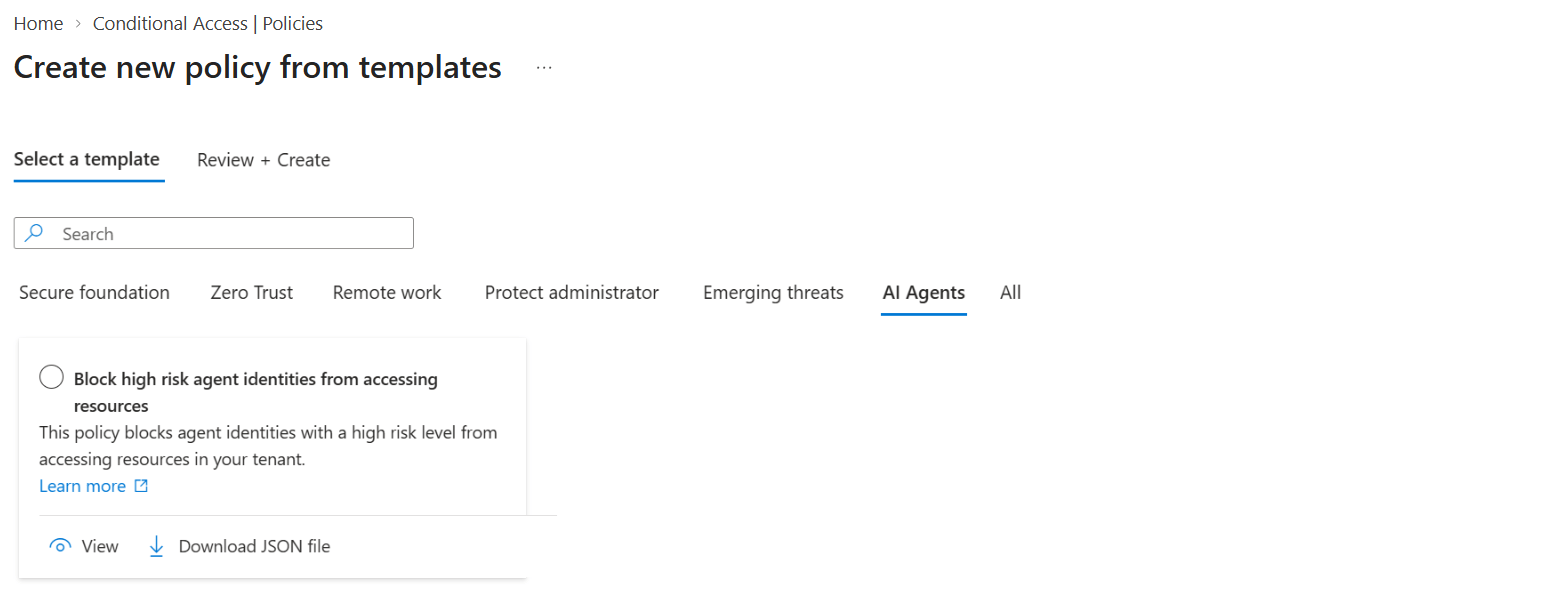
The AI Agents template category lists three starting points on Microsoft Learn:
- Block high-risk agent identities
- Configure policy for autonomous agent access
- Configure policy for on-behalf-of agent access
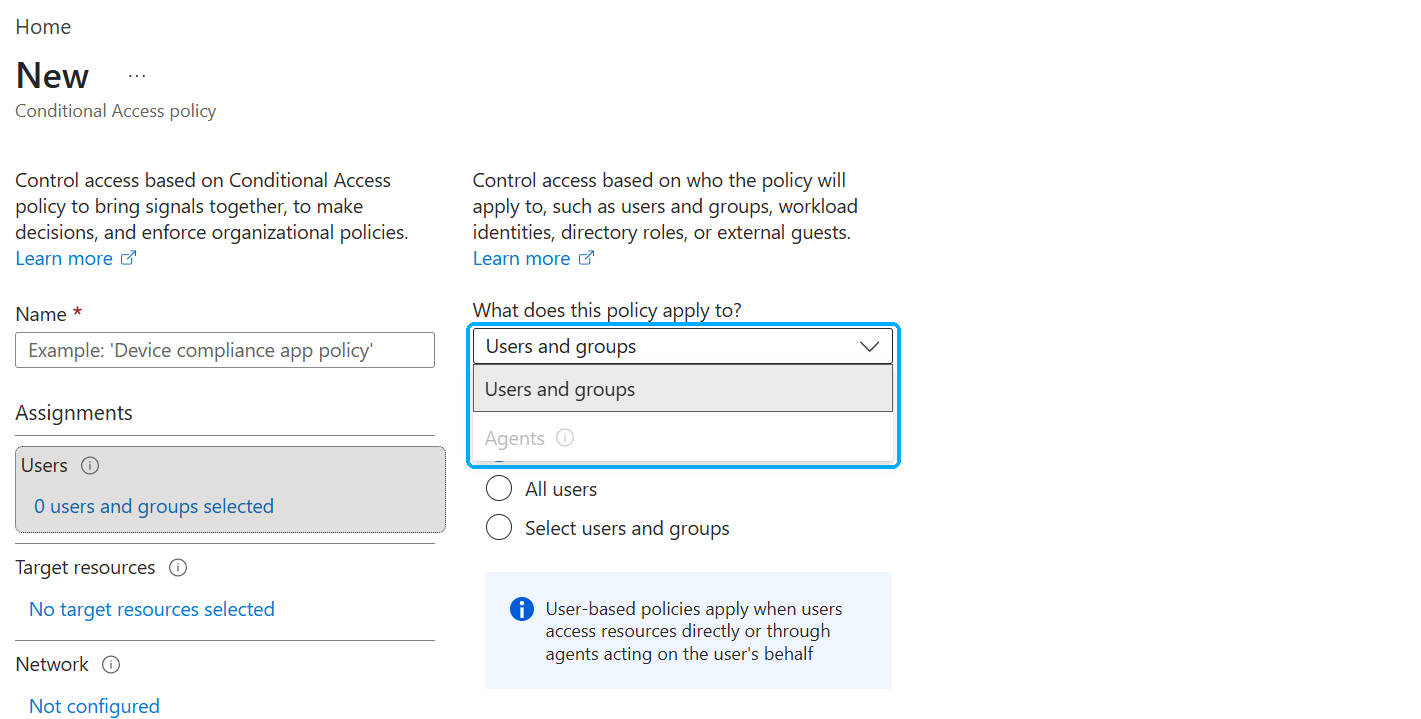
Your tenant may show only the first. The autonomous and on-behalf-of templates, and the Agents option in the policy editor, need a Microsoft Agent 365 licence (alongside Entra ID P1 or Microsoft 365 E3) or Microsoft 365 E7. Without one, the category holds a single template and Agents is greyed out, which is exactly what the lab tenant for this post showed.
The boundaries
Worth stating plainly, because otherwise you’ll assume coverage that isn’t there. Conditional Access doesn’t apply:
- when security defaults are enabled;
- when a blueprint acquires a token to create an agent identity or agent’s user account;
- during the intermediate token exchange at the AAD Token Exchange Endpoint;
- when an agent reaches a resource with an API key rather than a Microsoft Entra token. That bypasses Entra’s token pipeline completely.
For agents running on managed endpoints such as Windows 365 Cloud PCs for Agents, there’s an Agent execution environments condition to scope device compliance and network policies to those sessions. It’s documented as Preview.
Licensing, honestly
Conditional Access for agents requires Entra ID P1 or P2 plus a Microsoft Agent 365 licence for each user. Microsoft’s own wording on that second part is: “Enforcement of Agent 365 licensing is coming soon.” So it’s required on paper and not yet enforced. The admin center doesn’t wait for it, though: without Agent 365, the autonomous and on-behalf-of templates don’t appear and Agents targeting is greyed out. Plan for it anyway. Network controls for agents also require Microsoft Entra Internet Access.
9. What it costs
None of this is free, and it’s worth being straight about that.
- Time. Report-only done properly adds at least a week per policy before it protects anything. Phase 1 to Phase 3 is about a month of calendar time.
- Break-glass is ongoing. Quarterly drills, a credential store that two people can actually reach, and an alert that nobody snoozes.
- Ownership has no home in the product. Policies don’t have an owner attribute. Your naming convention and an out-of-band registry are the only record of who owns what, and that upkeep outlives whoever set it up.
- Hardware. Phishing-resistant MFA for admins means buying keys, and having a process for when one gets lost.
And here’s the case for not doing all of it. If you’re a 40-person shop with no Intune, device-based grant controls are the wrong place to start. Block legacy authentication, require MFA for everyone, secure the security info registration page, and get break-glass right. That’s four policies. Compliant-device requirements can wait until you have an MDM to enforce them against.
Whatever size you are, the principle is the same. Write the grant half, write the deny half, and then go looking for the gaps between them. The sign-in logs will tell you where they are, if you open the right screen.
For exam prep
If you’re studying, this maps to the SC-300 and SC-500 objectives on implementing Conditional Access policies (SC-500 also calls out Conditional Access for Microsoft Entra Agent ID), and to SC-100‘s objectives on validating Conditional Access alignment with a Zero Trust strategy and designing solutions for agent identities.
Sources
All Microsoft Learn, read 22 September 2026.
- Plan a Conditional Access deployment (sections 1, 3, 6)
- Add, test, or remove protected actions in Microsoft Entra ID (section 3)
- Conditional Access policy templates (section 2)
- Analyze Conditional Access policy impact (section 4)
- Manage emergency access accounts in Microsoft Entra ID (section 5)
- Troubleshoot sign-in problems with Conditional Access (sections 6, 7)
- The Conditional Access What If tool (section 7)
- Conditional Access for agents (section 8)
- What’s new in Microsoft Entra Agent ID (section 8)
Portal paths and preview status were checked on 22 September 2026. Microsoft renames blades and promotes features regularly, so if something doesn’t match what you see, check the linked Learn page first.